QR code inventory tracking: a practical guide
If you’ve ever watched someone squint at a spreadsheet trying to figure out which shelf the “blue widget, v2” lives on, you already understand the case for QR codes. They turn a slow, error-prone lookup into a one-second scan, and they cost almost nothing to adopt.
What is QR code inventory tracking?
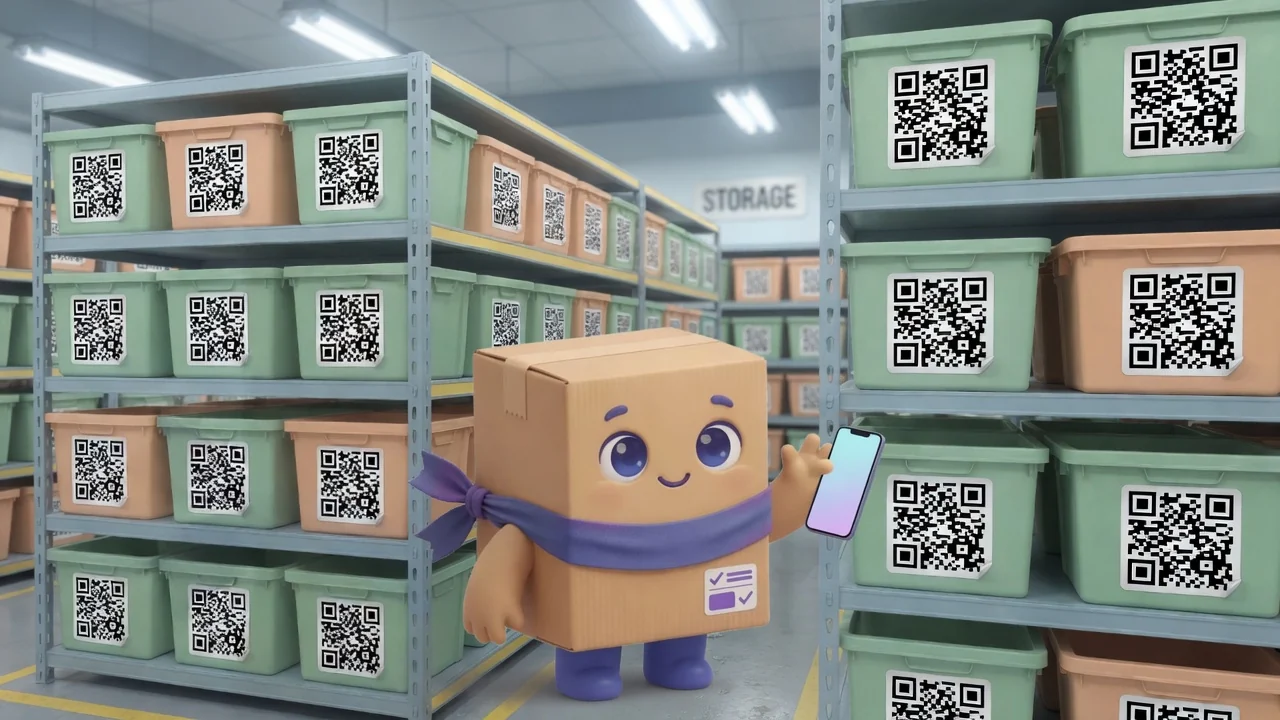
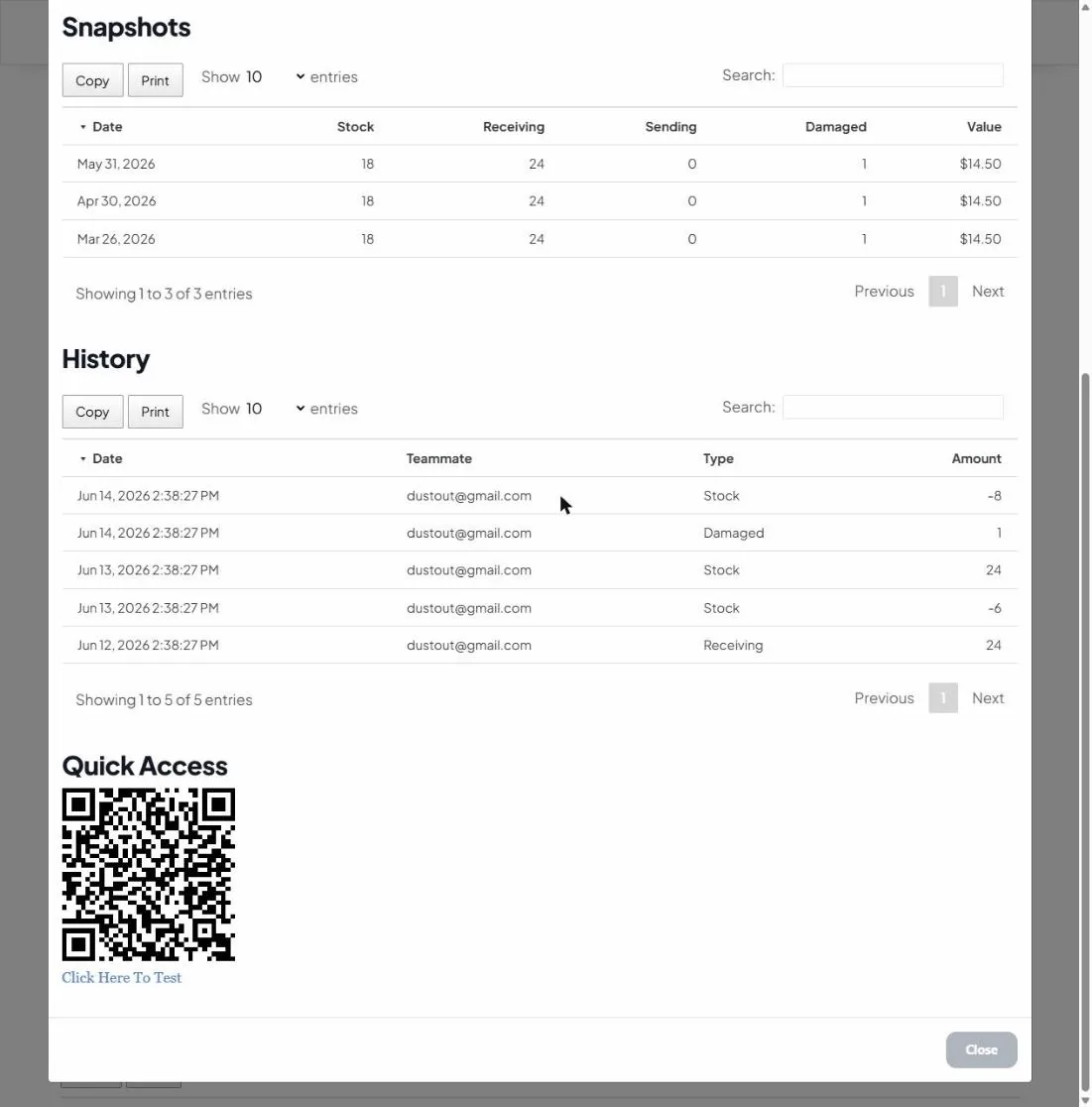
Each item (or bin, shelf or location) gets a unique QR code. Scanning it with a phone camera pulls up that exact item’s record (its counts, location and history) so anyone can check or update stock without searching by hand.
Why it beats manual lookups
- Speed. Scan instead of search. Receiving and counting get dramatically faster.
- Accuracy. No more “which item did I mean?” because the code resolves to one record.
- Accessibility. Anyone on the team can do it with the phone in their pocket.
- Cost. QR labels are cheap to print and don’t need special scanner hardware.
How to roll it out
Get your items into a system
Start with an accurate list of items and current counts. This is your source of truth.
Generate and print labels
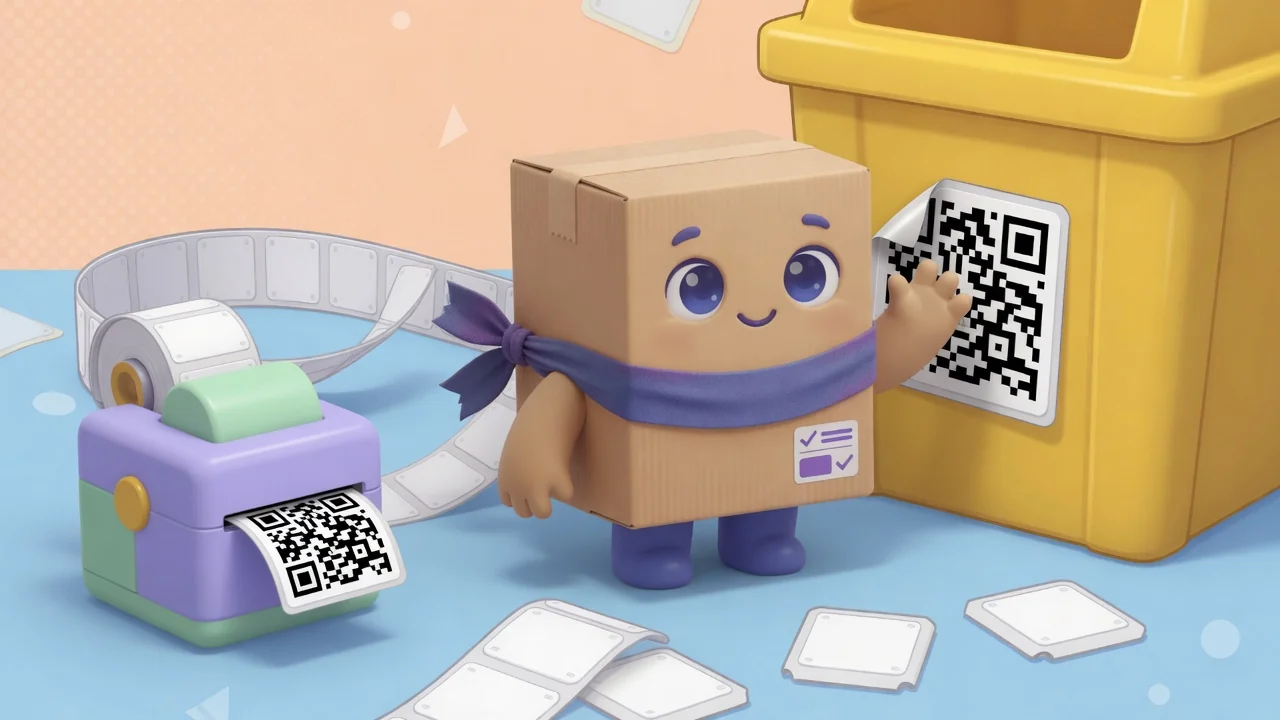
Produce a unique QR code per item and stick it where it’s easy to scan, whether that’s the bin, the shelf edge, or the product itself.
Scan to view or update
Point a phone camera at the code to open the item, then adjust quantities as you receive, use or move stock.
Tips for clean labeling
- Label the location, not just the item, when stock moves around.
- Use durable labels in cold, damp or high-traffic areas.
- Keep codes at a consistent height so scanning becomes muscle memory.