Inventory Snapshots
A snapshot freezes a point-in-time record of every item’s counts and values. It’s your reference point for audits and reconciliation — a clean “this is what we believed we had” you can always count back against.
Open your dashboardWhat a snapshot is
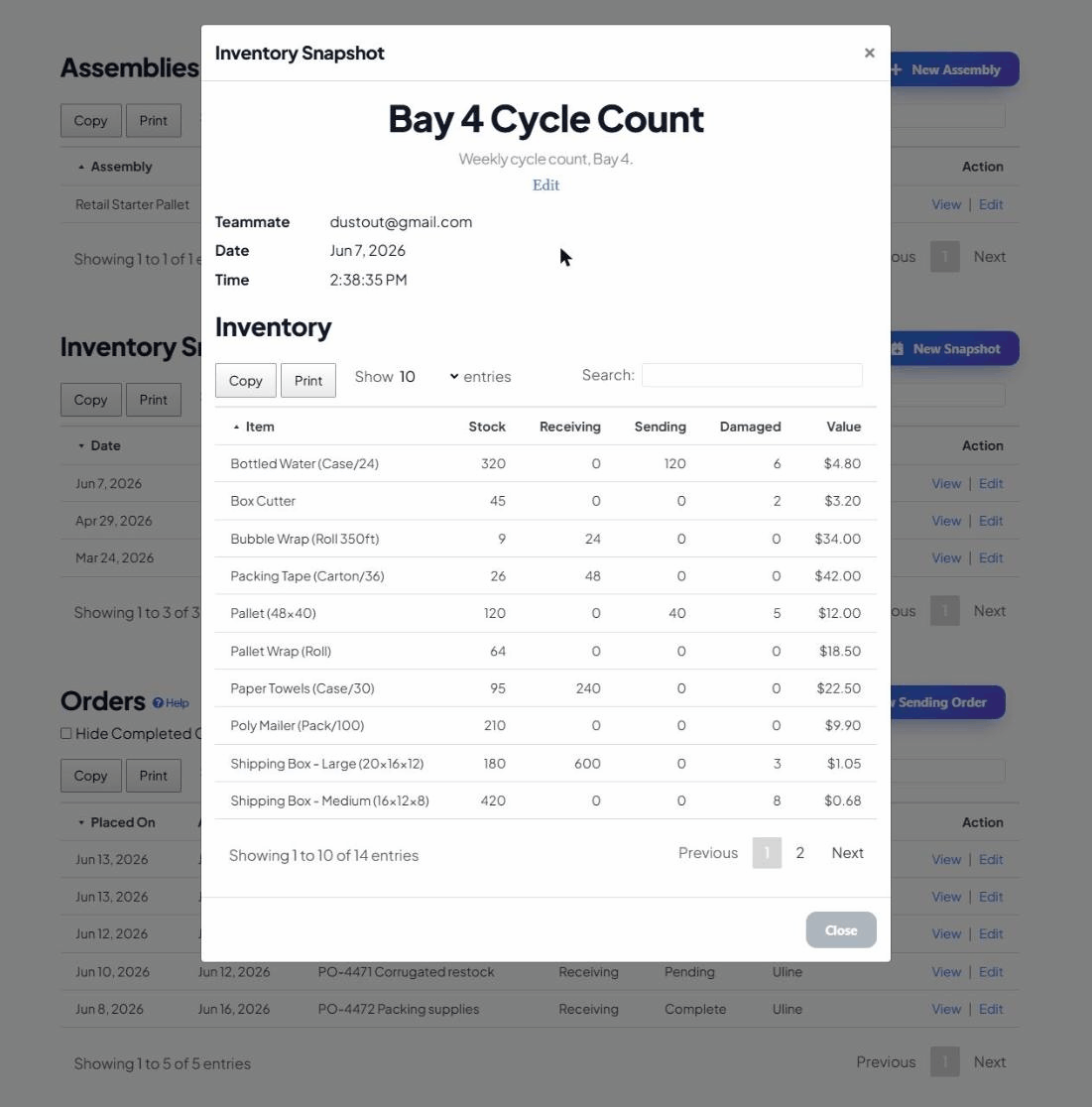
Your live inventory is always moving — counts change as you receive, send and build. A snapshot captures a frozen copy of every item’s Stock, Receiving, Sending, Damaged counts and value at the moment you take it. That frozen copy never changes, even as your live numbers keep moving, which is exactly what makes it useful for checking your work later.
Why you’d take one
- Periodic audits — a monthly, quarterly or year-end record of where things stood.
- Reconciliation — compare a physical count against what the system thought you had, and investigate the gaps (shrinkage, miscounts, theft, breakage).
- History — look back at how stock and inventory value have changed over time.
Taking a snapshot
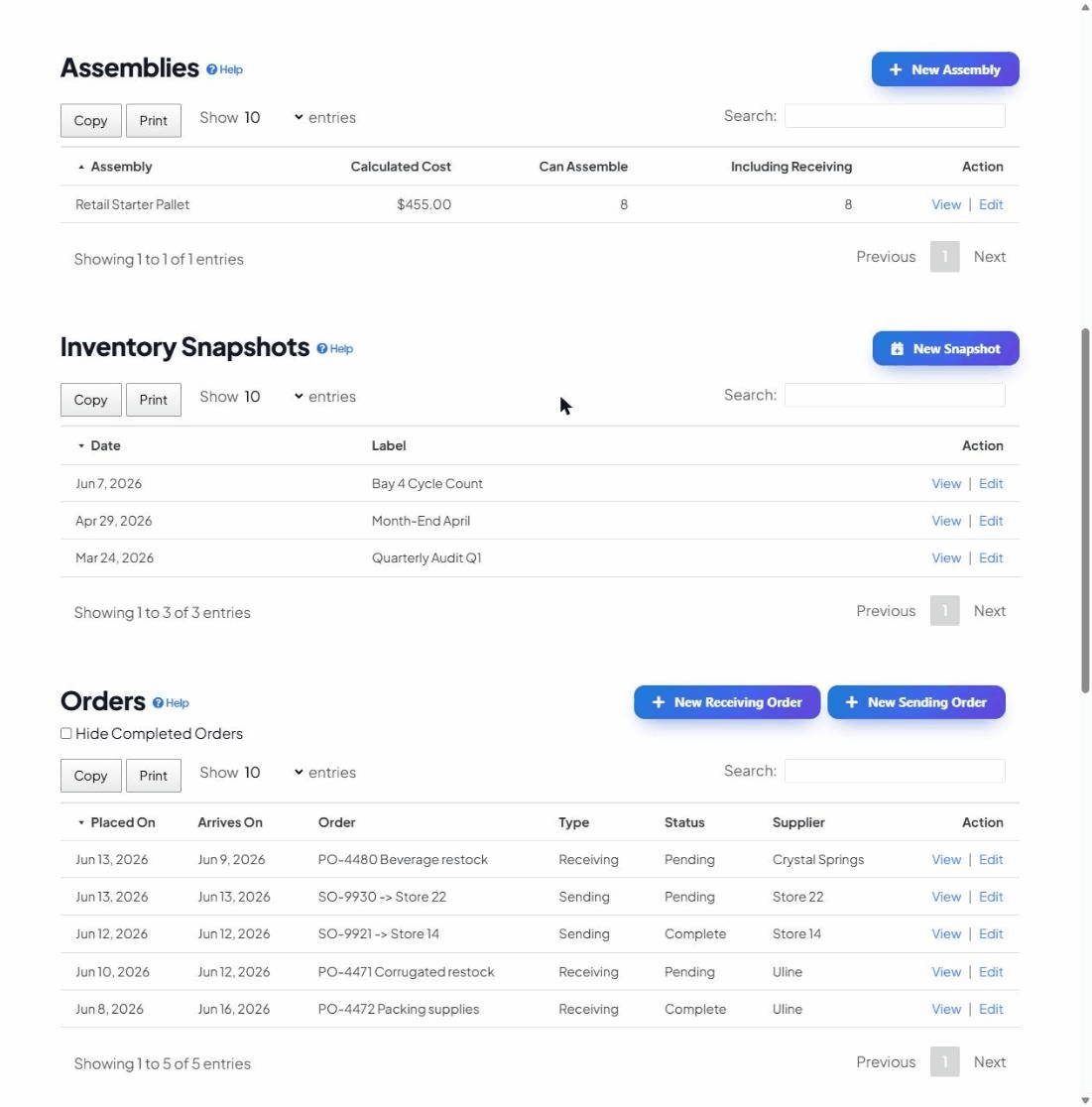
- In the Inventory Snapshots section, click New Snapshot.
- Give it a Label that you’ll recognise later — e.g. “January”, “Quarter 1”, or “2026 Year-End”.
- Add notes if you want context (who counted, anything unusual), then Save.
The snapshot records the date and time and the teammate who took it, then stores the full per-item counts as they were at that instant.
Reviewing a snapshot
Open any snapshot from the list to see the frozen inventory it captured — every item with the counts and values it held at that moment. Because it doesn’t move, you can take a physical count today and compare line by line against the snapshot to find exactly where reality and records diverge.
A simple reconciliation routine
- Take a snapshot to freeze the current system counts.
- Do a physical count of the shelves.
- Compare the physical count to the snapshot and note the differences.
- Correct the live counts in Inventory (use Edit to set the exact number) so the system matches reality again.
- Keep the snapshot as your audit trail of what was found and when.