Team
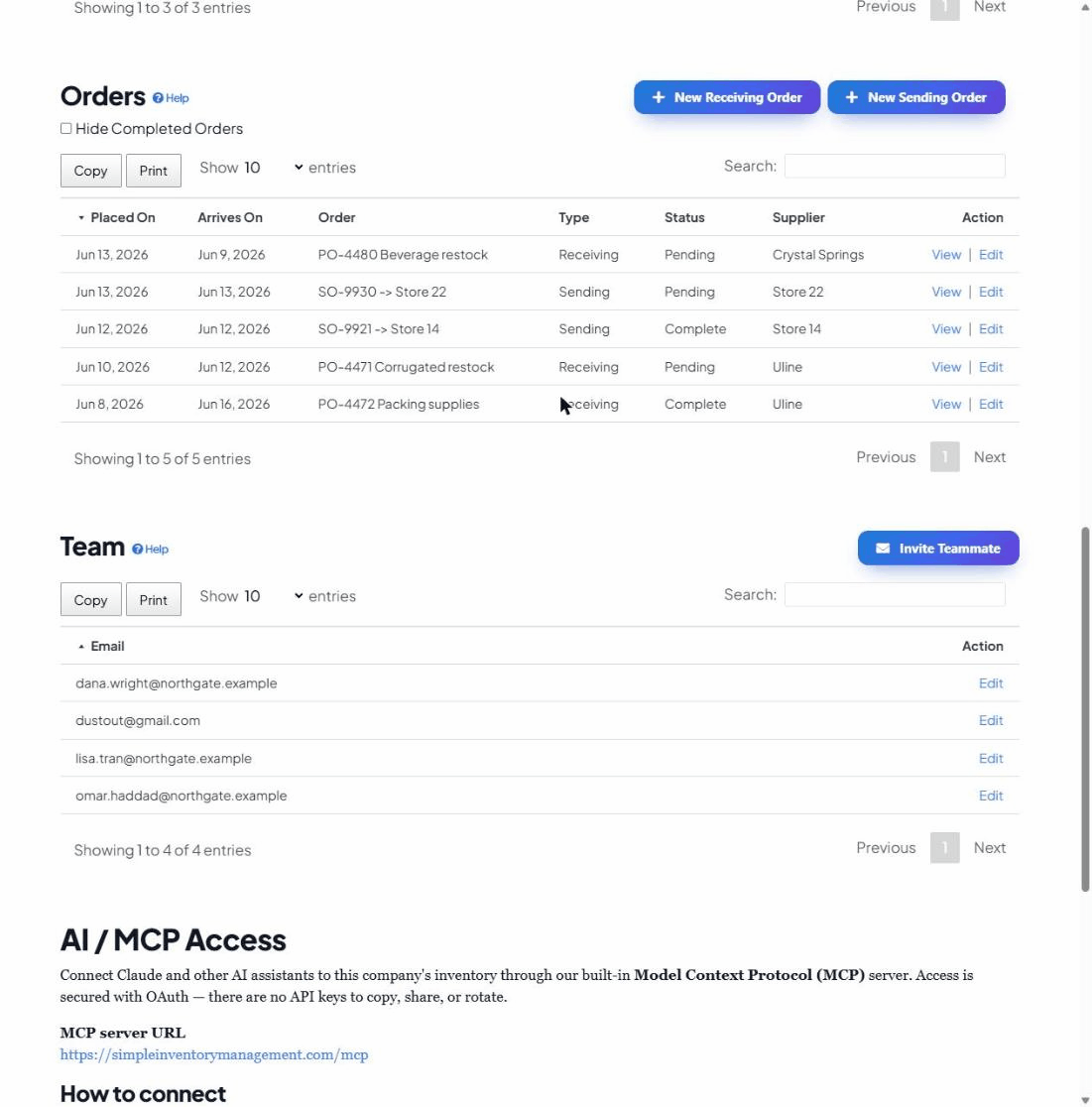
The Team section is where you share a company’s inventory with other people. Invite teammates by email and everyone works from the same live numbers — updates from one person show up for everyone.
Open your dashboardWhat this section does
Each company in the app has its own list of members. Anyone on that list can open the company and see and change its inventory, assemblies, snapshots and orders. The Team section is simply the list of who those people are, plus the controls to add and remove them.
Inviting a teammate
- Click Invite Teammate at the top of the Team section.
- Enter the person’s email address and click Invite.
- They’re added to the company’s member list and emailed an invitation with a link to get started.
How access works
- Membership is per company — inviting someone to one company doesn’t give them access to any other.
- Members share one live view of the data; there’s no “my copy” vs “their copy.” A change one person makes is what everyone sees.
- There’s no limit to count against — add as many teammates as you need.
Removing access
When someone no longer needs access — they’ve left, or were added by mistake — click their entry in the Team list and choose Delete. They lose access to that company right away. (This only removes them from this company; it doesn’t delete their account.)