Custom fields: track the details that matter to your stock
Most inventory tools give you a fixed set of columns: a name, a count, maybe a price. That covers the basics, but real stock carries details those columns can’t hold. Which lot is this? When does it expire? What’s the serial number, the color, the bin it lives in? Custom fields let you add exactly those details, on your terms, without bending your inventory to fit someone else’s schema. You can attach them at the item level or the unit level, depending on whether the fact belongs to the catalog SKU or to a specific stock line.

What a custom field actually is
A custom field is a named piece of information you attach to stock: a field name (like “Expiry”) and a value (like “2027-03”). You define the field once and can reuse it across the catalog, so “Expiry” means the same thing everywhere. It’s the difference between a structured detail you can scan, sort and search, and a sentence buried in a notes box.
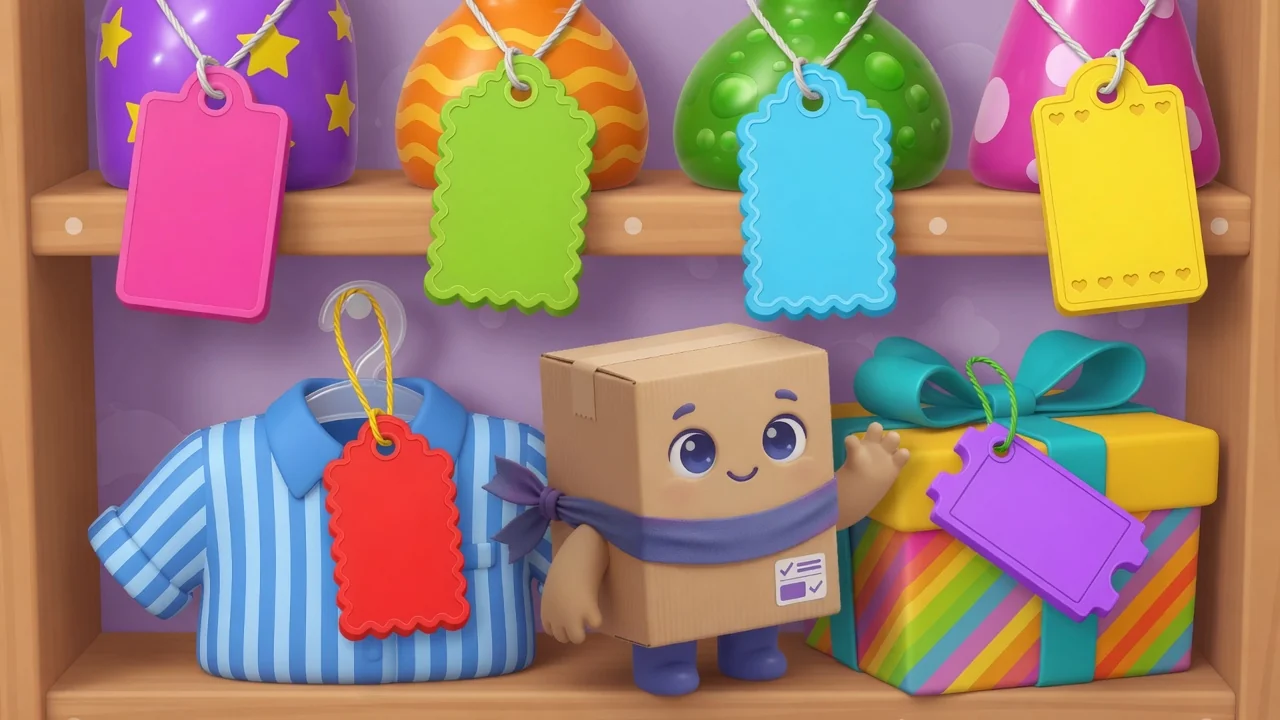
Item-level vs unit-level
Item-level fields describe the product itself. Color, size, supplier SKU, default bin: facts that are the same for every unit of that item. Unit-level fields describe a specific stock line or physical unit. Lot number, expiry date, received date, condition: facts that can differ when you hold more than one lot or more than one serialized piece. When you create a field, choose whether it applies to items, units, or both.
When to reach for one
If you’ve ever wished your inventory had “just one more column,” that’s a custom field. Common ones:
- Lot or batch number (usually unit-level) for traceability and recalls.
- Expiry or received date (usually unit-level) to rotate stock first-expiry-first.
- Serial number (unit-level) for individually tracked, high-value items.
- Color, size or variant (item-level) for retail and apparel.
- Supplier SKU or manufacturer part number (item-level) next to your own naming.
- Bin or shelf location (item or unit) so anyone can find it fast.
Add it, reuse it, show it
The workflow is deliberately simple. Open an item or a unit, add a custom field, give it a name and a value, and save. The next time you need that field, pick it from a dropdown of fields you already use, so you never end up with “Color,” “colour” and “Colr” competing in the same catalog.
Keep your fields clean
- Reuse an existing field instead of typing a near-duplicate name.
- Put catalog facts on the item and stock-line facts on the unit, so values stay honest when lots differ.
- Only promote a field to a column if you scan it often. The rest live on the detail view.
- Keep value formats consistent (pick YYYY-MM for dates and stick with it) so sorting works.
Let AI do the typing
Because Simple Inventory Management has a built-in MCP server, you can also set custom fields by chatting. Tell Claude “set the lot number on the saline to L-33027” and it fills the field in for you. More on that in adding custom fields by asking Claude.