Set up Microsoft Teams low-stock alerts in five minutes
This is the whole project: get a webhook link out of Microsoft Teams, paste it into your inventory notification settings, and prove it works with a test card. From then on, any item that drops across a threshold you’ve set announces itself in your channel. Five minutes, no IT ticket, nothing to install.

Before you start
Make sure at least one item actually has a threshold: a warning level, critical level or reorder point on the item itself. Thresholds are per item, and items without one never alert. (New to reorder points? Here’s how to set them so you never run out.)
Step 1: get the webhook link from Teams
- Open the channel that should receive alerts, click the … menu next to its name, and choose Workflows.
- Type webhook into the search box and pick “Send webhook alerts to a channel”.
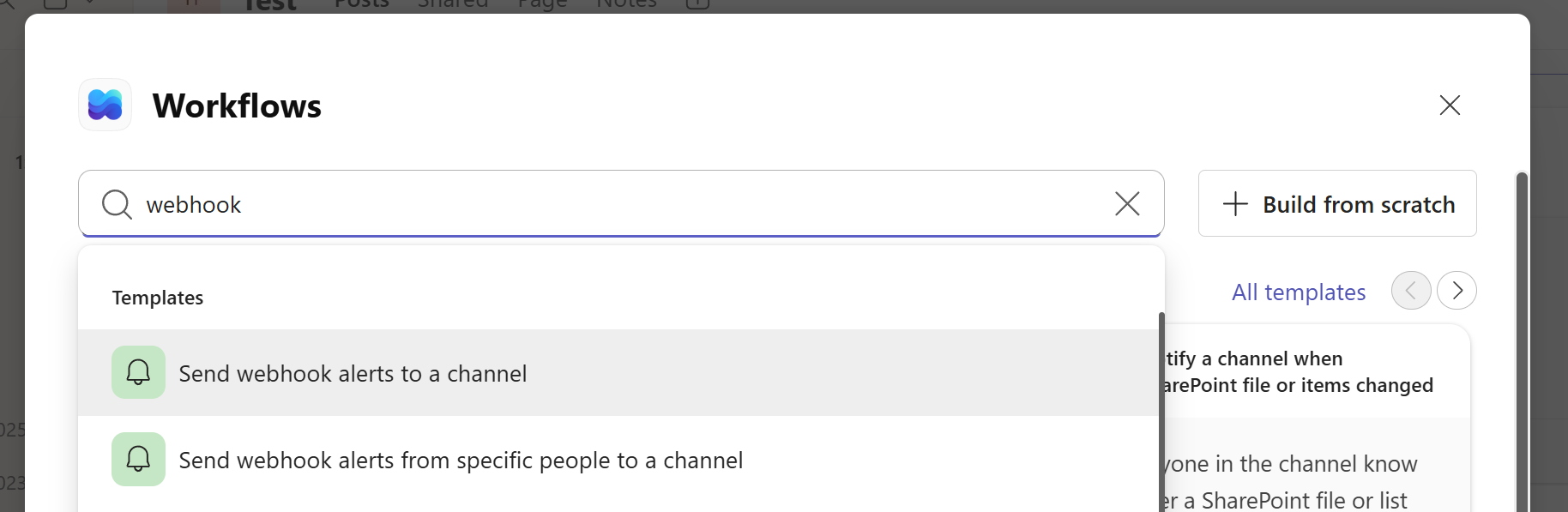
- Confirm the team and channel, click Save, and on the confirmation screen click Copy webhook link.
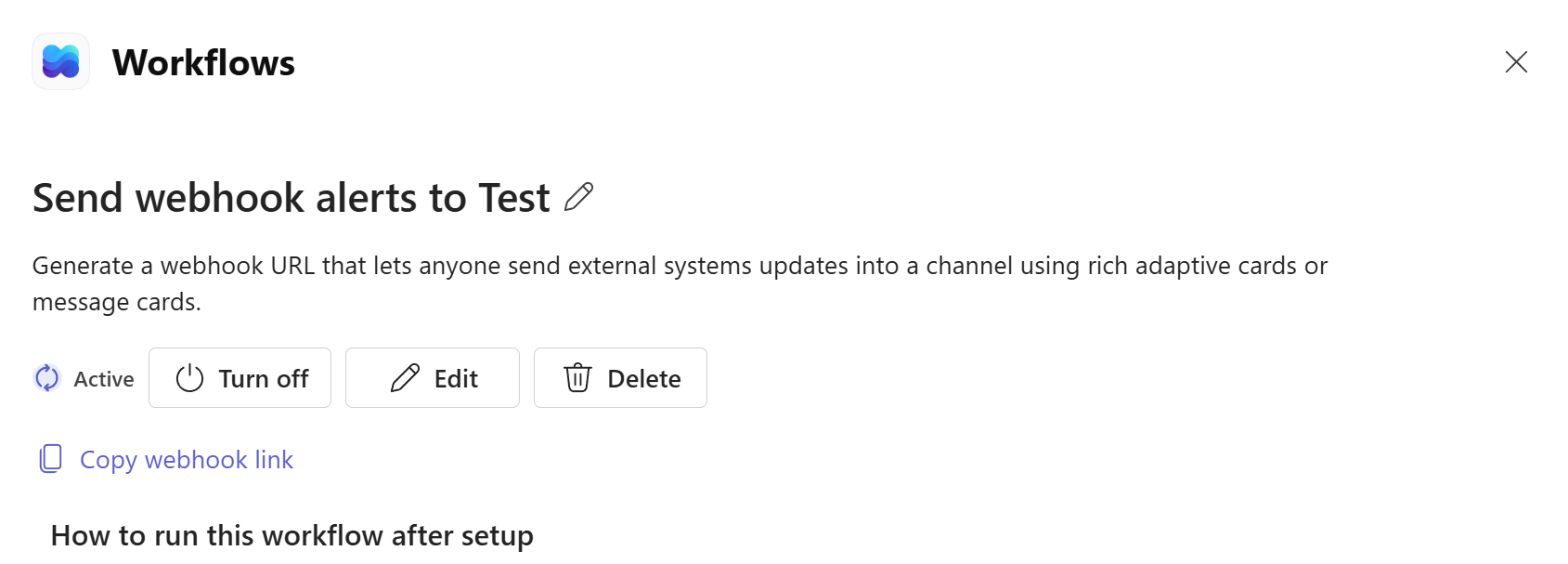
Step 2: paste, test, enable
- In Simple Inventory Management, open your company and click Manage notifications.
- Paste the link into Teams webhook URL.
- Click Send a test alert and watch your channel. A green test card should arrive within a few seconds. If it doesn’t, re-copy the link; they’re long and easy to truncate.
- Tick Enable Teams alerts, choose which of the four alert types you want (warning, critical, out of stock, reorder point), and Save.
Step 3: trip it on purpose
Don’t wait a week to find out whether it works. Take a test item with a warning level of 10, set its count to 11, then knock it down to 9. A yellow warning card should land in the channel showing the drop and the threshold. That’s the entire loop, verified end to end.
What you’ll notice after a week
The channel quietly becomes the place stock problems get caught early. Someone replies “on it” under a reorder-point card, drafts the purchase order, and the stockout that would have happened next Tuesday simply doesn’t. If the alerts ever feel chatty, tighten your thresholds or turn off a severity level; the point of per-type toggles is that an alert your team ignores is worse than no alert.