Microsoft Teams notifications
Post low-inventory alerts straight into a Microsoft Teams channel. When an item’s stock drops across its warning level, critical level, reorder point, or hits zero, everyone in the channel knows within seconds.
Open your dashboardWhat this page does
Each company has a Notifications page (open the company, then click Manage notifications). It holds two things: the Teams webhook URL that alerts are posted to, and the toggles for which alert types you want. Alerts are sent as cards, so each one shows the item, the company, the old and new stock level, and the threshold that was crossed.
Step 1: create the webhook in Teams
Teams generates webhook URLs through Workflows. You only do this once per channel, and you don’t need anything installed:
- In Teams, open the channel you want alerts in, click the … menu next to the channel name, and choose Workflows.
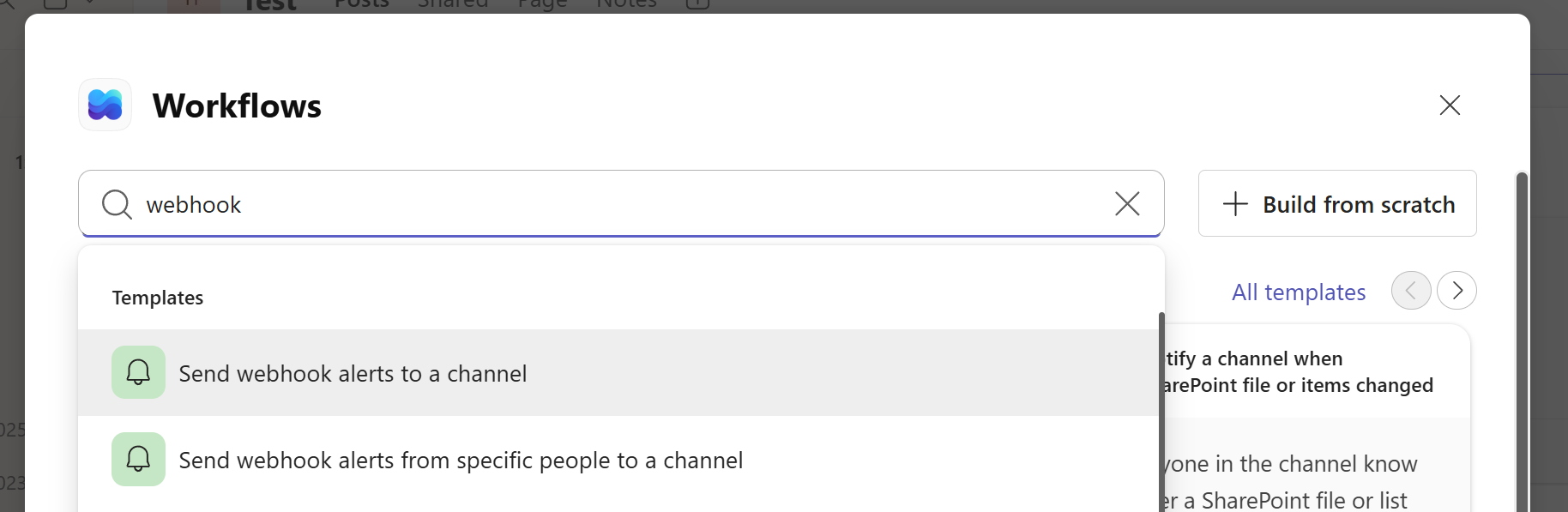
- Search for webhook and pick the template “Send webhook alerts to a channel” (in some tenants it’s worded “Post to a channel when a webhook request is received”).
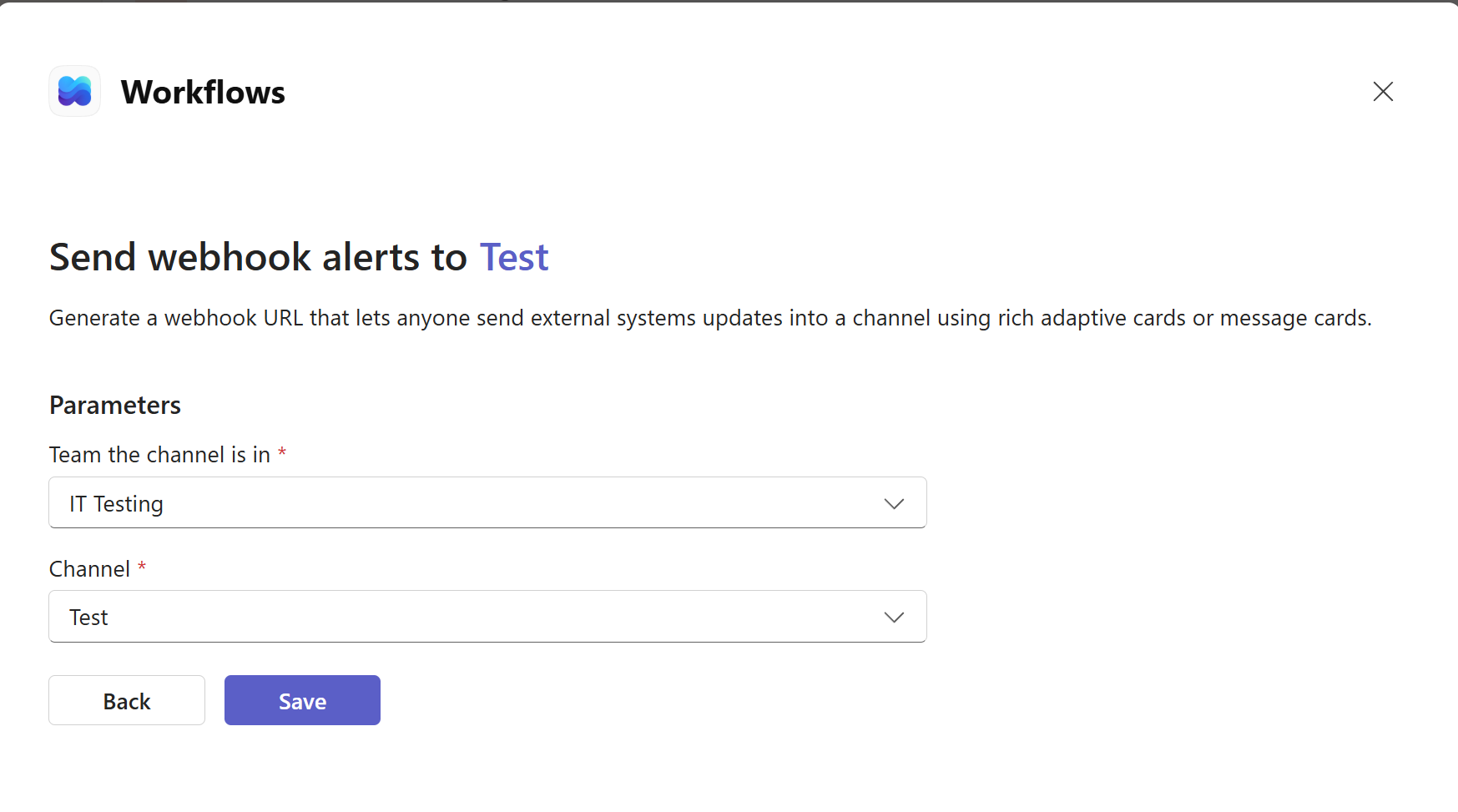
- Confirm the team and channel the alerts should go to, then click Save.
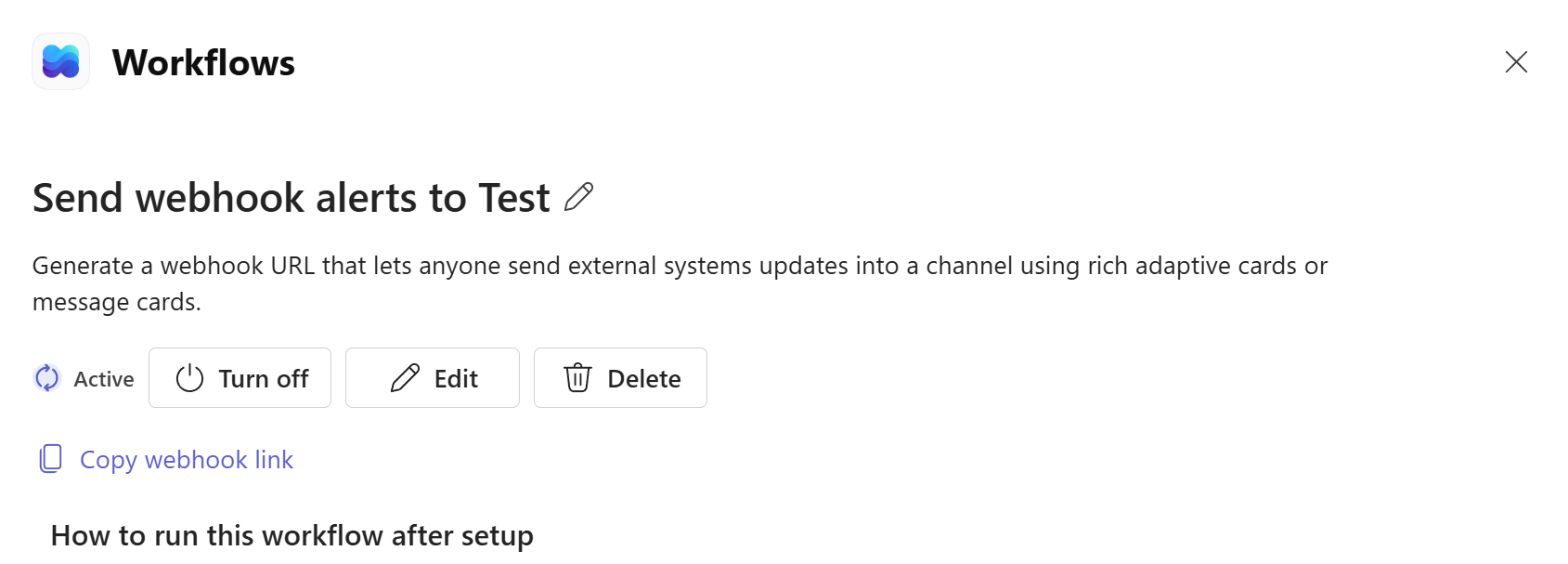
- On the confirmation screen, click Copy webhook link. That URL is what you’ll paste into your notification settings.
Step 2: paste it into your notification settings
- Open your company and click Manage notifications.
- Paste the webhook URL into the Teams webhook URL field.
- Click Send a test alert. A green test card should appear in your channel within a few seconds.
- Tick Enable Teams alerts, choose your alert types, and click Save notification settings.
Choosing your alerts
The four alert types map to the thresholds you set on each inventory item:
- Warning level: stock fell to or below the item’s warning level.
- Critical level: stock fell to or below the item’s critical level.
- Out of stock: stock fell to zero.
- Reorder point: available stock (on hand plus on order) fell to or below the item’s reorder point, the same moment it starts showing up in reorder suggestions.
How alerts avoid becoming noise
An alert fires at the moment stock crosses a threshold, not on every change while it sits below one. If an item drops from 12 to 9 past a warning level of 10, you get one card. Selling two more doesn’t re-alert. Restock above the level and drop past it again, and you’ll get a fresh alert, because that’s genuinely new information. It also doesn’t matter how stock changes: manual edits, QR-code updates, order receiving, CSV imports and changes made by AI over MCP all count.
Troubleshooting
- The test alert doesn’t arrive. Check the workflow shows as Active in Teams (Workflows can be turned off), and that you copied the full link. Webhook URLs are long.
- Alerts stopped after working fine. If the person who created the workflow leaves the organization or their account is disabled, Teams deactivates their workflows. Recreate it from an active account, copy the new link, and save it in your settings.
- No alert when you expected one. Confirm the item actually crossed the threshold (it may already have been below it), the alert type is ticked, and Enable Teams alerts is on.