How to connect Muse to Simple Inventory Management
If you already chat with Muse while you work, your inventory can join that same conversation. Simple Inventory Management ships with a built-in Model Context Protocol (MCP) server, so Muse can read and update your live stock in plain language. No CSV exports, no copy-pasting counts into a chat window, and no API keys to look after.
This post walks through the whole connection: what you need, the four setup steps, a first conversation to try, and how to undo the connection if you ever want to.

What you need before you start
- A Simple Inventory Management account with at least one company and a few inventory items in it.
- A Muse client that supports custom (remote) MCP connectors. Exact menu labels vary by surface, so look for a connectors or MCP servers area in its settings.
- Your MCP endpoint URL, which is your site address with
/mcpon the end.
The full setup guide, including a copyable version of your own MCP URL once you are signed in, is the Connect AI guide.
Connect Muse in four steps
- Prepare the company. Sign in to Simple Inventory Management and confirm the items you want Muse to manage live under the right company. Muse will only ever see the one company you authorize in step three.
-
Add the connector in Muse. In Muse, open its settings and find the connectors or MCP
servers section. Choose the option to add a custom or remote connector, give it a name such as
“Simple Inventory”, and paste your MCP URL:
https://simpleinventorymanagement.com/mcp
- Authorize with OAuth. Muse sends you to a secure Simple Inventory Management sign-in page. Log in, pick the company this connection may use, and approve access. Authorization uses OAuth 2.1 with PKCE, so there is no long-lived API key sitting in a config file or a chat prompt.
- Run a test question. Back in Muse, ask: “What is below its reorder point right now?” If you get back real items and quantities from your company, you are connected. The same numbers will be waiting in the app.
A first conversation against live stock
Once connected, a morning check-in can look like this. The tool labels are the operations the MCP server exposes to Muse on your behalf.
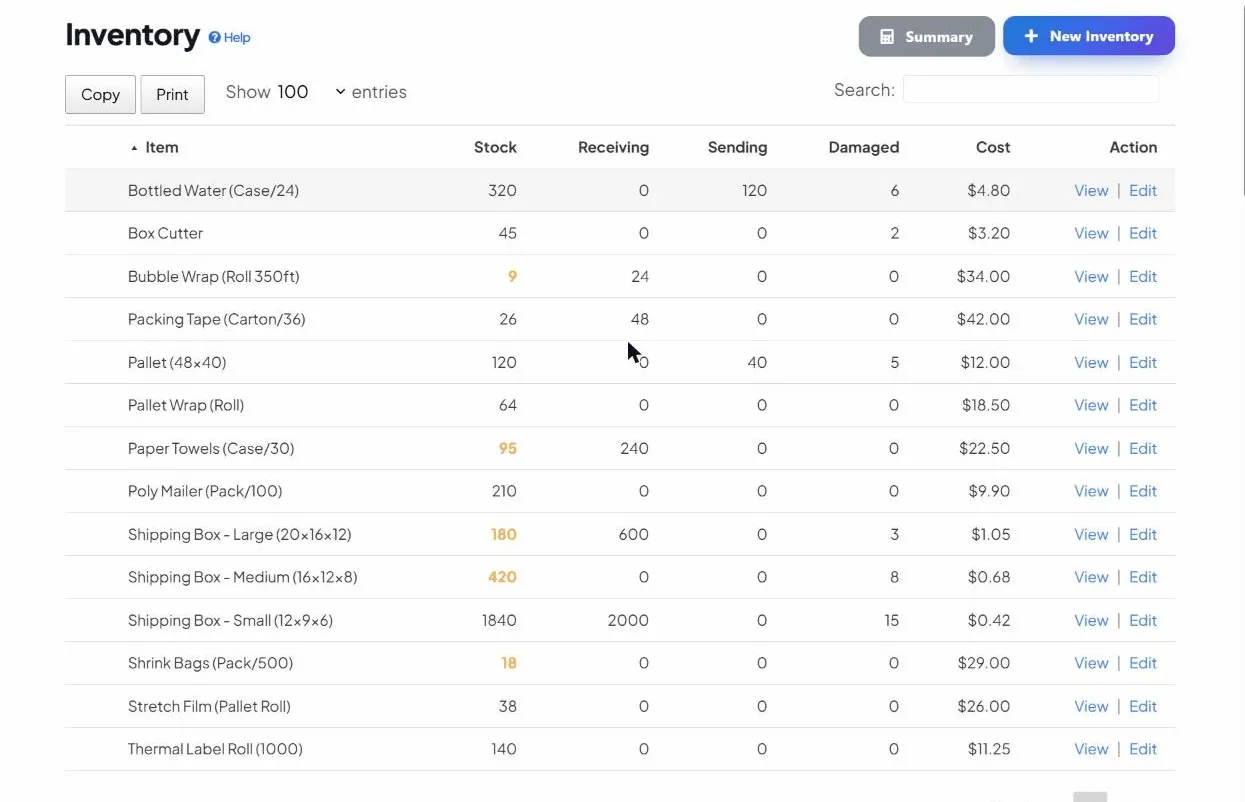
- M4 bolts: 40 on hand (reorder at 120) → order 200 from FastenCo
- Blue enclosures: 12 on hand (reorder at 50) → order 48 from CaseWorks
- USB-C cables: 18 on hand (reorder at 75) → order 100 from CableHub
That is not a chatbot inventing numbers. Muse called tools against the same database the web app uses, so opening the item in Simple Inventory Management shows the same counts and transaction history.
What you can ask Muse to do
- Check levels: “How many blue enclosures do we have across all locations?”
- Find items: “Find anything named gasket or seal that is low.”
- Record receipts and usage: “Add 24 to SKU ENCL-BLU from today’s delivery.”
- Plan reorders: “What should we buy this week, grouped by supplier?”
- Look up a barcode: “Find the item with barcode 012345678905 and tell me stock on hand.”
- Track individual units: “Which serialized units are out right now?”
For more prompt ideas, see five questions to ask an AI assistant about your stock.

How access stays scoped and revocable
Every action Muse takes runs as you, against the single company you picked on the authorization screen. It cannot see another company on your account, and it cannot do anything your own user is not allowed to do. If a request fails authorization or validation, you get an error instead of a confident guess. Details are on the security page and in the AI / MCP feature overview.
Changed your mind? Remove the connector in Muse, or revoke the authorized application from your Simple Inventory Management account settings. Access stops immediately, and reconnecting later is the same four steps above.
If something does not connect
Muse says it can’t reach the connector
Check that the URL ends in /mcp, with no extra spaces, and that you are signed in to Simple Inventory Management in the same browser when you authorize.
It connected, but to the wrong company
Remove the connector in Muse and add it again, then pick the correct company on the authorization screen. Each connection is bound to one company, so a second company needs a second connector.
The answers look made up
Ask Muse to show its work against live stock, for example “Use the inventory tools to check that, do not guess.” A connected Muse should call a tool such as get_inventory before answering with quantities.